Overview
Cue is a native macOS app that lives in the menu bar. It started as a screenshot tool and grew into a daily workspace. It now has:
- capture: full screen, area, window, scrolling and text, all with their own shortcuts
- an image editor for annotating, cropping and framing captures
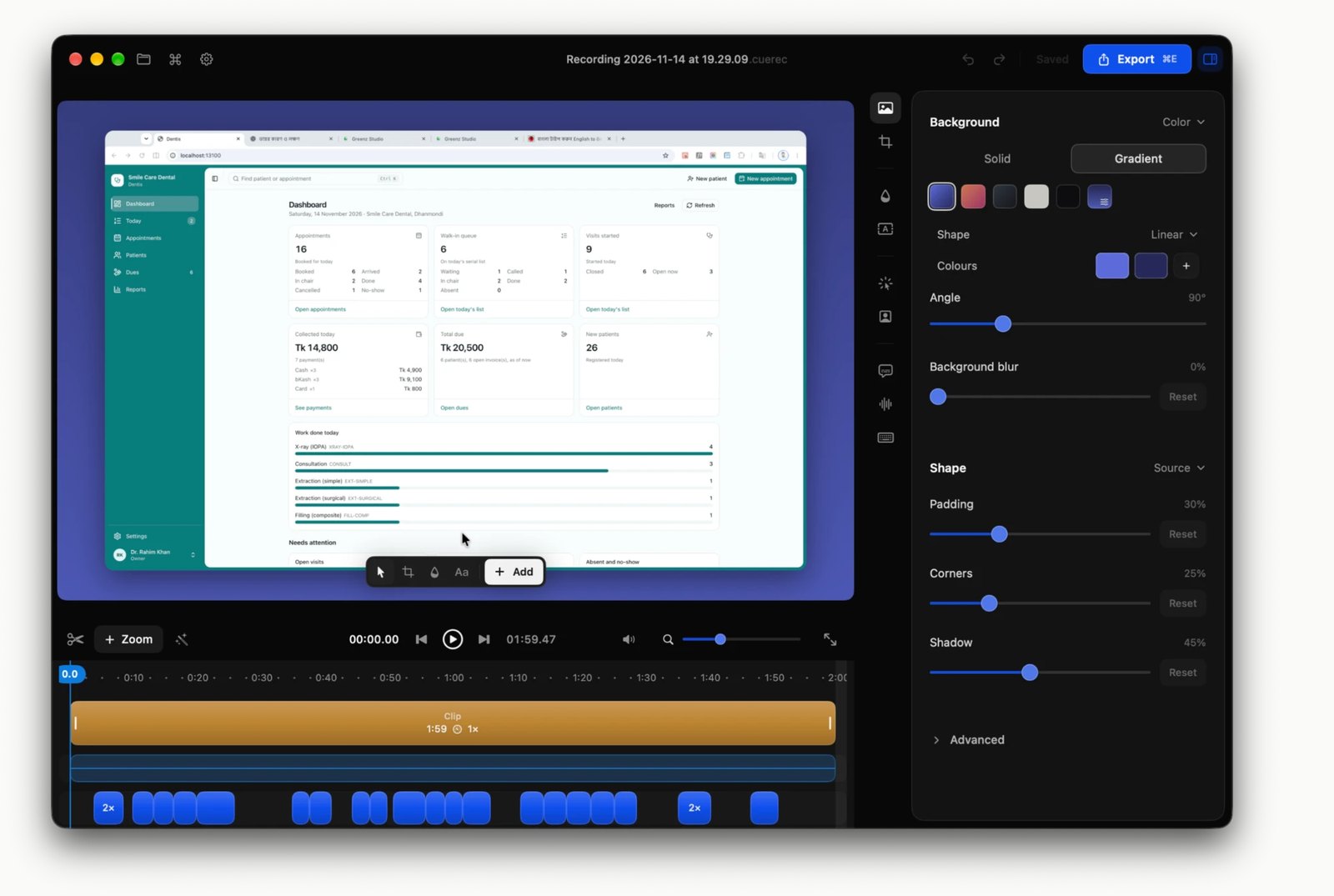
- Studio, a screen recorder with a video editor
- a Dynamic Island in the notch, holding clipboard history, tasks, notes, colors and snippets
- an MCP server, so AI coding agents can read and update Cue’s task list
It’s a sandboxed SwiftUI and AppKit app for macOS 14 and later. It updates itself with Sparkle, and a Windows port is in progress. I built it end to end, from the first commit in September 2026 to version 0.19 two months later, across more than 600 commits.
The challenge
Every part of Cue sits close to the operating system, where the hard parts are hard to see:
- Capture has to feel instant. A shortcut freezes the screen, and the selection must respond with no visible lag.
- Scrolling capture has to stitch exactly. Frames have to be joined without repeated rows, and sticky headers mustn’t be copied into every frame.
- Recordings have to stay editable. Zooms, cursor smoothing and click effects should be possible after recording, not baked in.
- It all runs inside the App Sandbox. That includes talking to AI agents, which run outside the sandbox.
The solution
Capture
Each capture mode has its own global shortcut, and every shortcut can be rebound:
- ⌥⇧3 full screen
- ⌥⇧4 area
- ⌥⇧6 window
- ⌥⇧5 scrolling
- ⌥⇧T capture text
- ⌥⇧P color picker
Area capture freezes the screen under an overlay. It has a loupe with pixel coordinates and color, edges that snap to nearby windows, resize handles and arrow-key nudging. Window capture keeps the window’s own shadow on a transparent background. Any capture can be pinned on screen as a floating image, with a click-through “ghost” mode.
Scrolling capture scrolls the target app through Accessibility, then stitches the frames together and removes repeated sticky headers and footers.
The editor
The editor has the annotation tools people expect:
- arrows (which can bend), shapes, lines and highlighters
- a pencil that recognises rough shapes and tidies them
- text, numbered counters, and blur or pixelate for sensitive areas
- a background tool for gradients, padding and a device-frame look
- a compare mode that lays several images out side by side or stacked
Captures can be shared as links, uploaded to S3-compatible storage with requests signed on-device. The secrets stay in the Keychain.
Studio: screen recording
Studio records the screen to its own package format with HEVC video. The cursor is not drawn into the video; it is saved as separate telemetry. That makes these possible after recording:
- auto-zoom that follows clusters of clicks
- smoothed cursor movement
- click effects
The editor treats an edit as a plain value, so undo is a stored copy and “has this changed?” is a simple equality check. Preview and export share one renderer, so what you see is what you export.
The Dynamic Island
Hovering over the notch opens an island with tabs for captures, clipboard, assets, tasks, notes, colors and snippets. It also shows what’s playing, the battery, the calendar, the weather, and live sessions from AI coding agents. Two other ways in:
- ⌥⇧K opens a floating panel
- ⌥⇧Space opens a command palette over everything
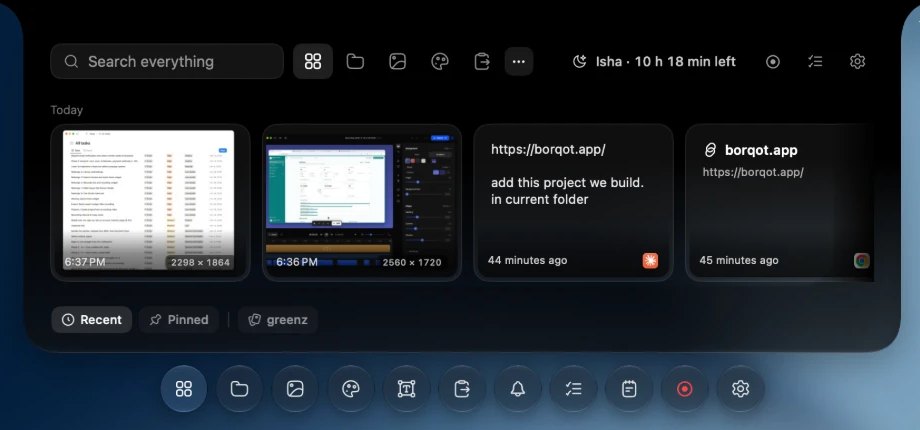
The palette’s search also gives quick answers for color formats, Unix timestamps, unit conversions, base64, math and UUIDs.
Clipboard, snippets and notes
- Clipboard history with a paste stack. “Paste as” transforms text, for example changing its case or tidying JSON, and code is detected and labelled with its language.
- Snippets, a text expander with placeholders for the date, the cursor position and even shell output.
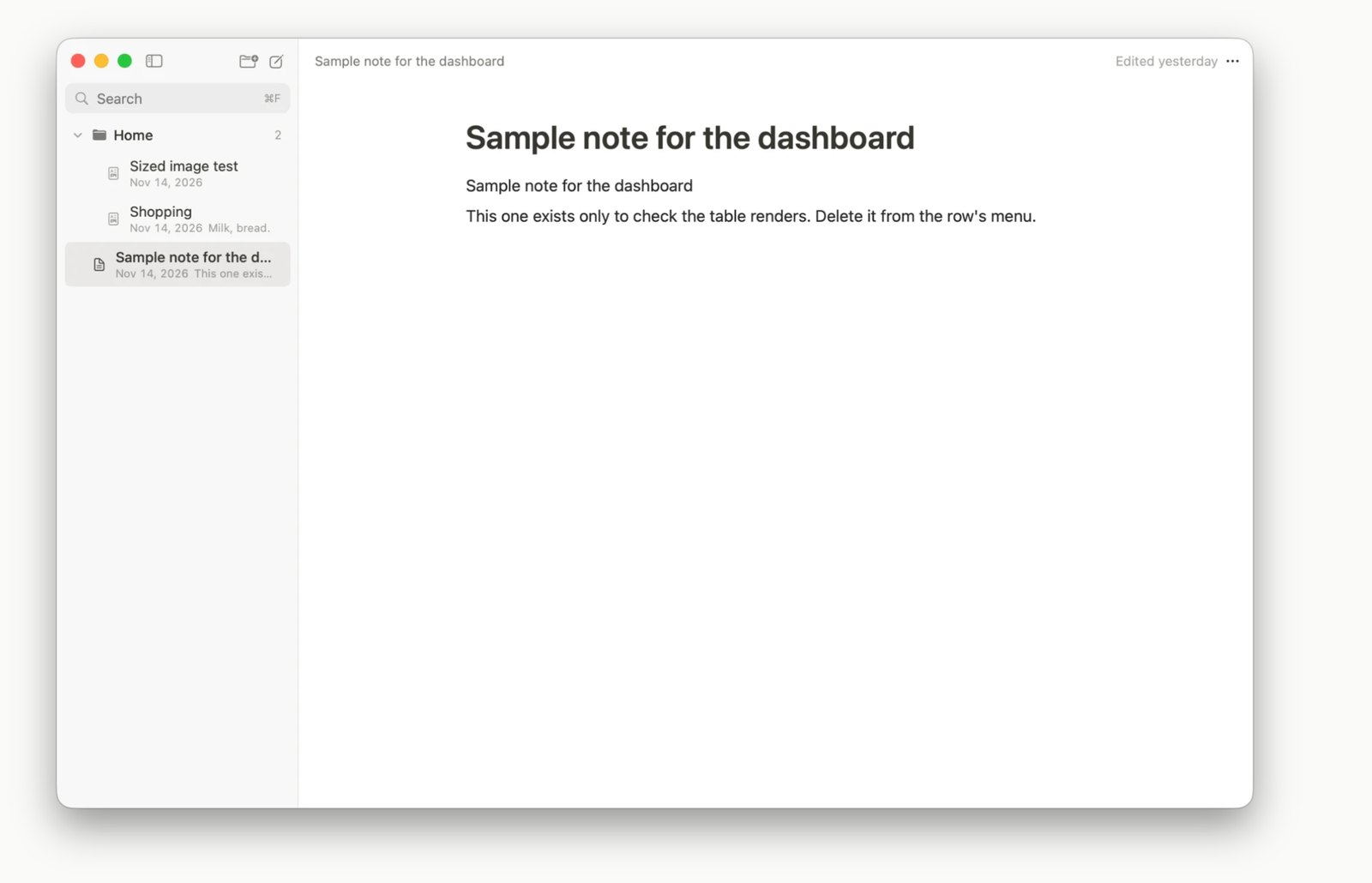
- Quick notes saved as Markdown files in a folder you choose, such as iCloud or an Obsidian vault. Notes can also be sent to Apple Notes or Notion.
Tasks, and tasks for AI agents
Tasks have a Markdown editor with #project and !priority shorthand, list and board views,
nested projects and focus timers. Tasks can sync to your own server, with webhooks signed
with HMAC-SHA256.
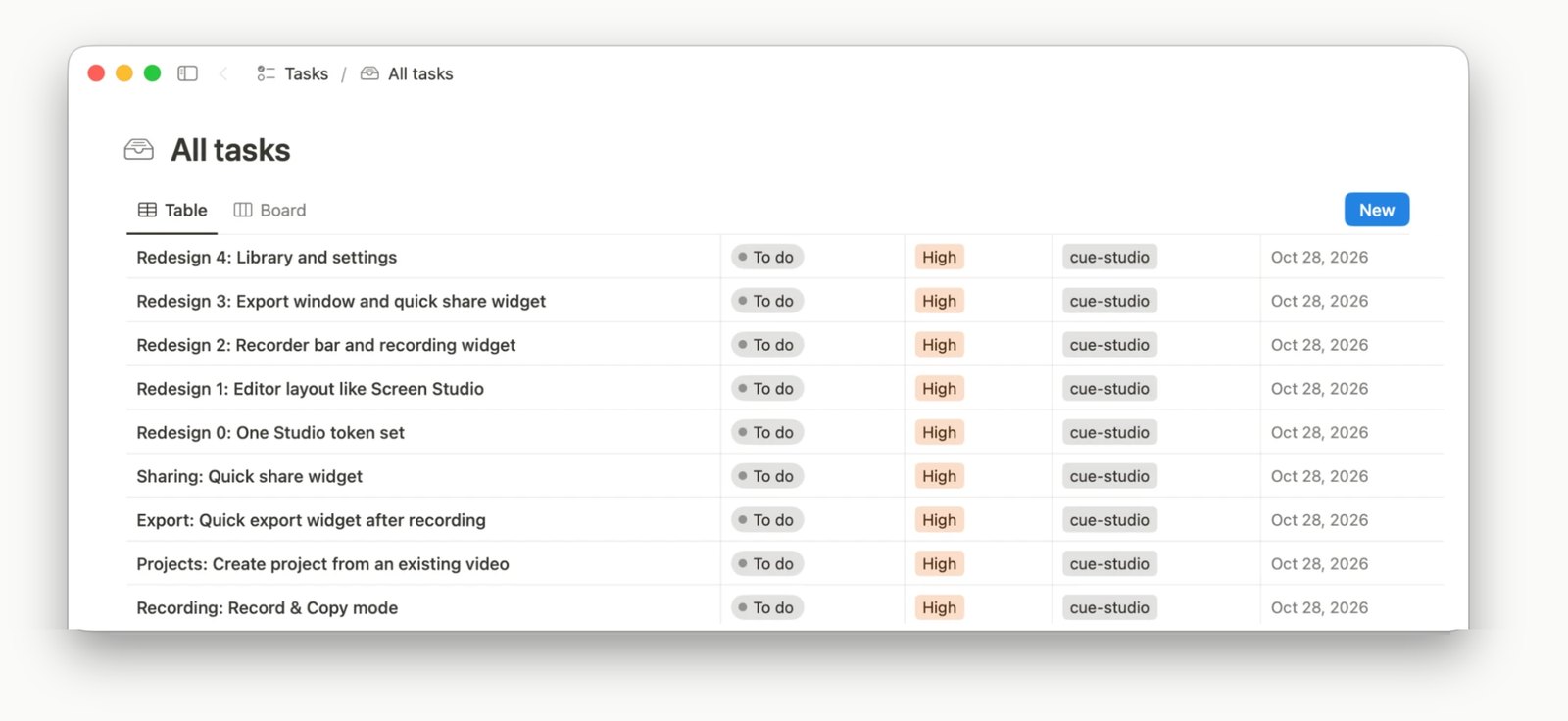
Cue also runs an MCP server, so AI coding agents such as Claude Code can list, create and update tasks and add notes as they work. Agents can’t delete anything over MCP.
Under the hood
- Swift 6 with strict concurrency (main actor by default), SwiftUI and AppKit, built on ScreenCaptureKit, AVFoundation, Core Image on Metal and Vision.
- Six local Swift packages keep the big pieces apart: RecordKit (capture and its file format), TimelineKit (the edit model), RenderKit (one renderer for preview and export), BackgroundKit, DictationKit (on-device speech with WhisperKit) and WebPKit.
- MCP inside the sandbox. The server listens on a private Unix socket in the app’s container. A small shim connects an agent to it, launching Cue first if it isn’t running.
- Stable code signing. macOS ties the Screen Recording permission to the app’s signature. Ad-hoc signatures change with every build, so the permission silently stopped working. A stable signing identity fixed it.
- Exact stitching. Scrolling frames are matched on row signatures. A match has to clearly beat “didn’t scroll”, and is then checked pixel by pixel. When the evidence isn’t clear, Cue says so instead of guessing.
- Recording that doesn’t drift or fail silently. ScreenCaptureKit only sends frames when the screen changes, so the last frame is repeated to keep video in sync with audio. Free disk space is watched while recording, because the capture stops silently when a disk fills.
- OCR in many languages. Apple Vision reads the text, with Tesseract language packs downloaded on demand. Output in the wrong script is caught: Vision sometimes reads Bangla as Devanagari with full confidence, and Cue refuses that result.
- Signed updates. Sparkle checks for updates once a day and verifies every download with an EdDSA signature.
- About 2,800 automated tests. For Studio, a quality log records more than 100 bugs, each with its cause, its fix and the test that now catches it.
- A Windows port built with Tauri 2, Rust and React. It covers capture, the editor, the island, the clipboard and OCR.
Key features
- Full screen, area, window, scrolling and text capture with rebindable shortcuts
- An annotation editor with smart shapes, blur, backgrounds and compare mode
- A screen recorder with auto-zoom, cursor smoothing and a timeline editor
- A notch Dynamic Island, a floating panel and a command palette
- Clipboard history, paste transforms and a snippet expander
- Markdown tasks with board view, focus timers, sync and signed webhooks
- An MCP server for AI coding agents
- Quick notes to folders, Obsidian, Apple Notes or Notion
- OCR in many languages, color picking and pinned captures
- Signed auto-updates, and a Windows port in progress